

Blog
One TV. Every Console. No Port Drama.
- Nintendo Switch 2, PS5, and Soundbars: How to Plan HDMI Ports and Cables in 2026Jun 18 ›
- HDMI 2.2 and Ultra96: What Home Theater Buyers Should Know Before UpgradingJun 18 ›
- Try the Real HDMI Switch Setup Before You BuyJun 15 ›
- PS5 and Xbox Series X Black Screen on HDMI Switch — Fix It Once and For AllMay 26 ›
- Playstation 6: everything we know so far about sony’s next-gen consoleSep 22 ›
One TV. Every Console. No Port Drama.

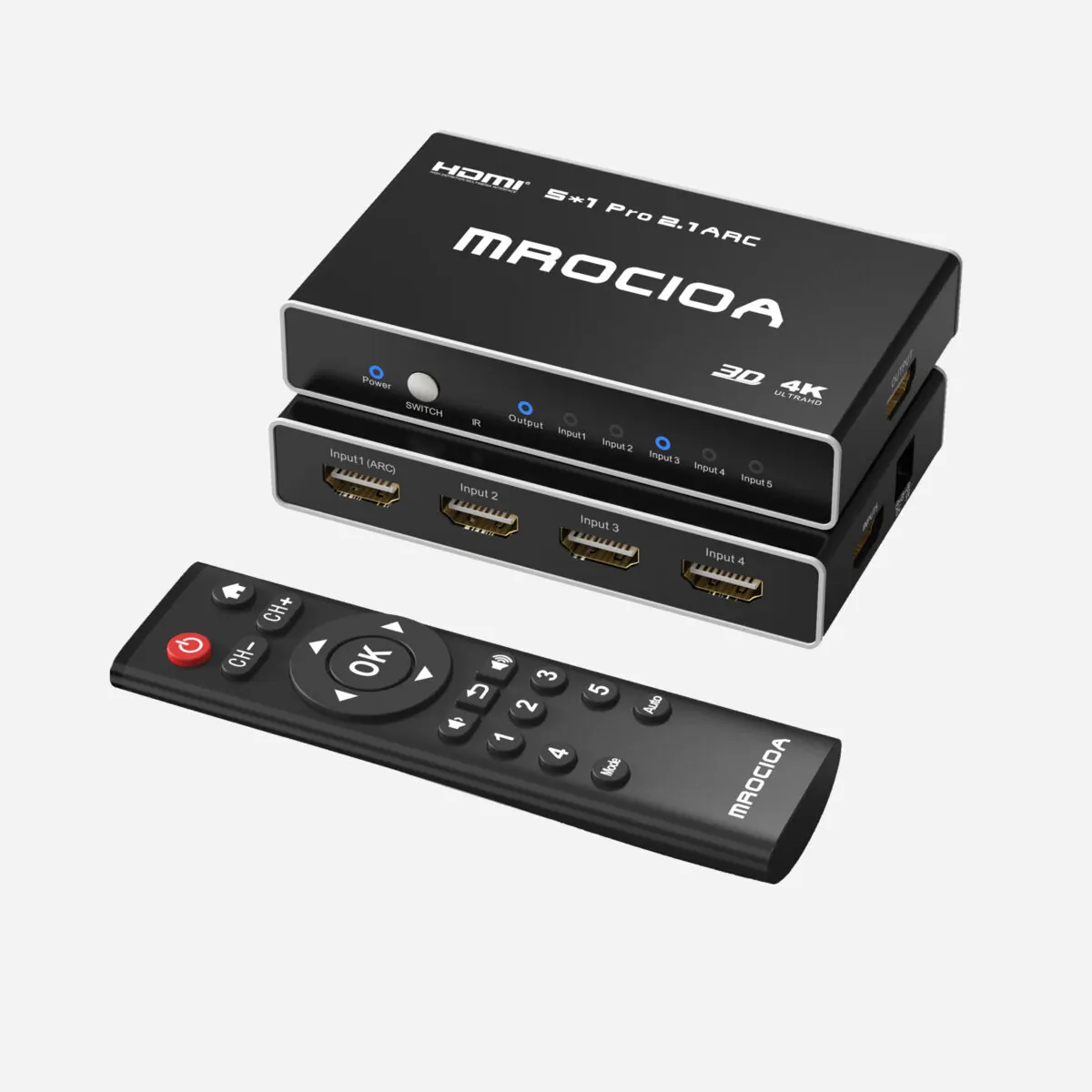
If your TV has only two full-bandwidth HDMI 2.1 ports, the problem is not just the number of sockets. It is deciding which devices deserve the 4K120 path, where eARC audio should live, and how to avoid handshake failures.
Keep the soundbar on the TV eARC port. Put PS5, Xbox Series X, gaming PC, and other high-performance sources on a full-bandwidth HDMI 2.1 switch. Use certified Ultra High Speed HDMI cables for the 4K120 path.
Why Two HDMI 2.1 Ports Get Crowded Fast
Many TVs reserve one premium input for eARC/ARC. Once a Dolby Atmos soundbar uses that port, PS5, Xbox Series X, gaming PC, Switch 2, Apple TV, and capture cards all compete for the remaining full-bandwidth input.
The clean solution is to keep audio return simple and put the devices that actually need 4K120, VRR, HDR, or ALLM on a reliable HDMI 2.1 switch.
Which Devices Need the Best Path?
Put it on the HDMI 2.1 switch path for 4K120, VRR, HDR, and ALLM.
Best on a full-bandwidth input or the same reliable HDMI 2.1 switch.
Usually needs the strongest signal path, especially with OLED or Mini LED gaming TVs.
Often fine at 4K60, but can join the switch for cleaner input management.
Usually fine on a standard 4K HDMI input unless you want one-button switching.
Keep it on the TV eARC port for simpler Dolby Atmos audio return.
Recommended Setup
- Connect the soundbar to the TV eARC/ARC port.
- Connect the MROCIOA S5 Pro or another HDMI 2.1 switch to the other full-bandwidth HDMI 2.1 port.
- Connect PS5, Xbox Series X, gaming PC, and other high-performance sources to the HDMI switch.
- Connect lower-bandwidth devices to standard HDMI ports if your TV has them.
- Use certified Ultra High Speed HDMI cables for every 4K120 path.
What to Check Before Buying
Important for many 4K120 HDR signal chains.
Helps preserve the gaming features your console and TV already support.
Keeps HDR10 and Dolby Vision workflows from breaking where supported.
Reduces handshake drops when switching between inputs.
MROCIOA S5 Pro for Crowded HDMI 2.1 Setups
Use one full-bandwidth TV input for multiple gaming sources while keeping eARC audio on the TV. It fits setups with PS5, Xbox Series X, gaming PC, Switch 2, and soundbars.
View S5 ProTroubleshooting If 4K120 or VRR Disappears
- Confirm the TV input is a full HDMI 2.1 port.
- Enable the TV enhanced HDMI/input signal setting if required.
- Test certified Ultra High Speed HDMI cables on both sides of the switch.
- Connect the console directly to the TV once to isolate the weak link.
- Update TV, console, switch, receiver, and soundbar firmware.
FAQ
Do I need an HDMI 2.1 switch for Nintendo Switch 2?
Not always. If your setup is mainly 4K60, Switch 2 may not need the most valuable HDMI 2.1 port. Adding it to the switch can still keep the setup cleaner.
Should my soundbar go before or after the HDMI switch?
For most users, the soundbar should stay on the TV eARC port. Put gaming sources on the HDMI switch.
Can one bad HDMI cable break the setup?
Yes. A 4K120 signal chain is only as strong as the weakest cable or device in the path.
Not sure which switch is right for you?
Tell us how many devices you're connecting and the resolution you need — we'll match you to the right switch in 30 seconds.
Find my switch →