
How to Play Every HDMI Source Through HomePod with Apple TV 4K

An Apple TV 4K and a HomePod pair can do more than play movies from Apple TV. With the right eARC path, the same HomePod system can also play audio from a PS5, Xbox, Nintendo Switch, Blu-ray player, or cable box connected through an HDMI switch.
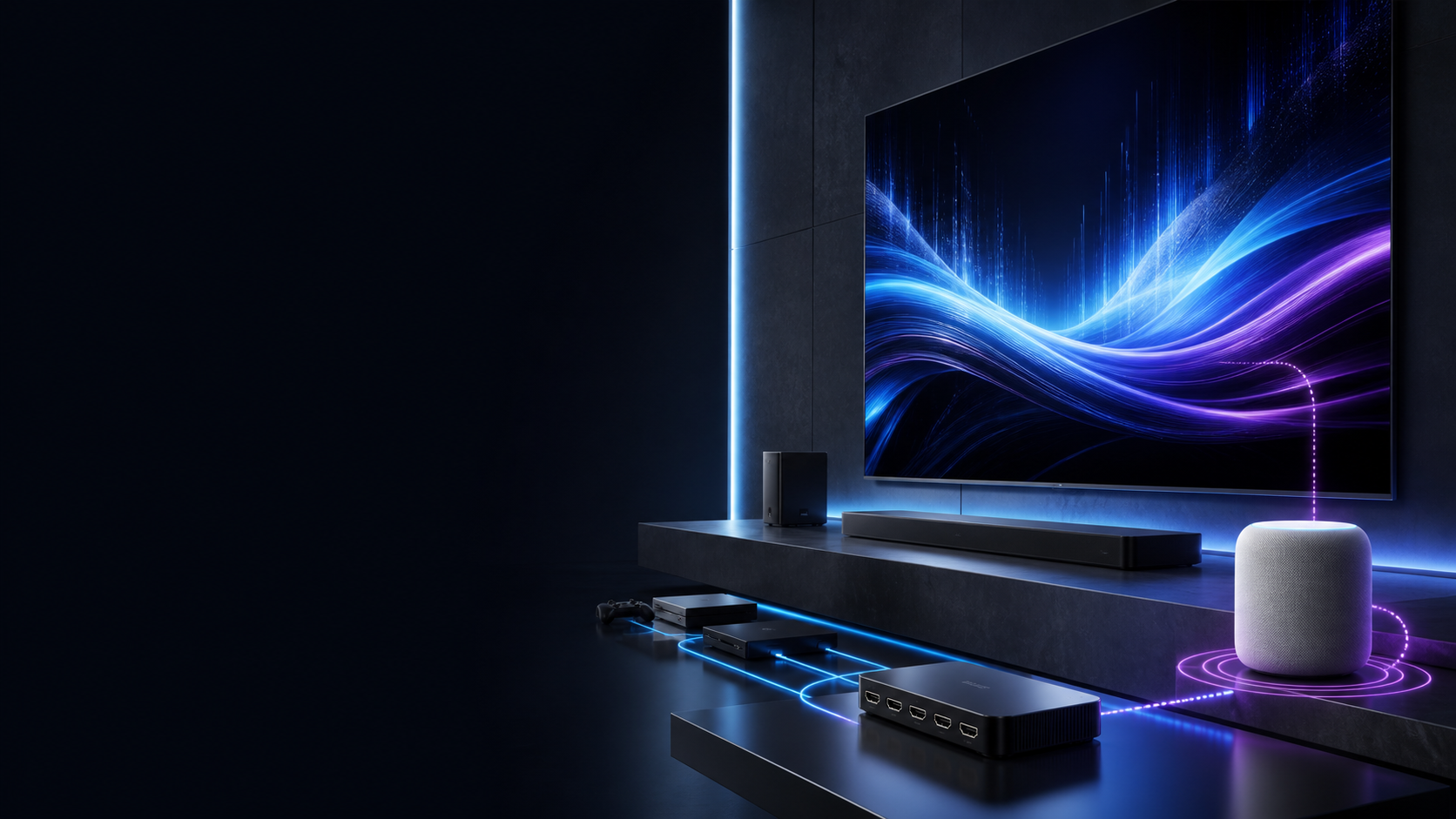
The important detail is the wiring. On the MROCIOA S5 Pro, Apple TV 4K goes to the dedicated ARC/eARC path on Port 1. Your other sources go to Ports 2–5. The switch output goes to the TV’s eARC port. Apple TV 4K then receives television audio over eARC and sends it wirelessly to the HomePod or HomePod stereo pair selected as its default audio output.
Quick answer
Yes—this setup can let every selected HDMI source use HomePod for sound, not only Apple TV.
Connect Apple TV 4K to Port 1, connect other sources to Ports 2–5, and connect MROCIOA HDMI OUT to the TV’s eARC port. Make HomePod the Apple TV’s default audio output, then turn on Play Television Audio.
Who is this HomePod eARC setup for?
Apple users building a cleaner TV audio system
This route is for people who want one HomePod or a HomePod stereo pair to handle Apple TV movies, live TV, disc players, and other HDMI sources without adding a wired speaker bar below the screen.
Owners deciding whether HomePod can replace a soundbar
HomePod is attractive when Apple integration, music playback, and a minimal wireless front stage matter most. A conventional soundbar can still be better for a dedicated center channel, subwoofer and rear-speaker expansion, or broader non-Apple connectivity.
PS5, Xbox and Nintendo Switch players
Gamers often discover the limitation after Apple TV sounds great through HomePod but the console does not. The missing piece is the TV eARC return path and a switch that preserves the dedicated Apple TV endpoint.
TV owners who have run out of inputs
The S5 Pro keeps Apple TV on the fixed Port 1 eARC route while four more HDMI devices share the television, avoiding repeated cable swaps.
See the signal path
Select a device below. Purple traces its HDMI path; cyan traces the eARC and Wi-Fi path to HomePod.
TO S5 PRO
TO TV
PS5 sends video and audio through its own S5 Pro input to the TV. The TV returns audio through eARC to S5 Pro Port 1 and Apple TV 4K, which sends it over Wi-Fi to HomePod.
Before you connect anything
Apple TV 4K generation
Apple specifies Apple TV 4K 2nd generation or later for receiving television audio over ARC/eARC.
HomePod in the same room
Assign Apple TV and HomePod to the same Home app room and select HomePod as Default Audio Output.
TV with ARC or eARC
Use the TV port labeled ARC/eARC. Enable eARC and HDMI-CEC in the TV menu when required.
Dedicated return path
This guide is specific to the MROCIOA model with Port 1 ARC/eARC routing—not a generic HDMI switch.
Wire the fixed eARC path first
Connect MROCIOA HDMI OUT to the TV’s eARC port. Put Apple TV 4K on Port 1. Use Ports 2–5 for consoles, a PC, disc player, or cable box.
Port 1 is not interchangeable in this topology because it carries the return audio to Apple TV.
Make HomePod the default output
Settings → Video and Audio → Audio OutputSelect the HomePod room under Default Audio Output. Under Audio Return Channel, choose Play Television Audio. Look for On (eARC), or On (ARC) on an ARC-only TV.
Prove the path in two stages
First select Port 1 and confirm Apple TV audio plays through HomePod. Then select Port 2 and test a game console. Repeat for every remaining input.
When picture works but sound does not
Confirm Apple TV is on Port 1, turn on TV eARC and HDMI-CEC, reconnect the HDMI cables, and power-cycle the TV, switch, Apple TV, and HomePod.
Step-by-step setup
TV eARC to MROCIOA HDMI OUT
Use a reliable eARC-capable HDMI cable. If the TV has only one eARC port, the switch output must use it.
Apple TV 4K to Port 1
Port 1 is the dedicated ARC/eARC return endpoint for this design.
Other sources to Ports 2–5
For example: PS5, Xbox Series X, Nintendo Switch, and a Blu-ray player.
Set HomePod as default audio
Put Apple TV and HomePod in the same Home app room, then select the HomePod room as Default Audio Output.
Turn on Play Television Audio
In Apple TV Audio Output settings, enable the Audio Return Channel option.
Enable TV eARC and HDMI-CEC
Start with digital audio on Auto. Test Pass Through if a source is not delivering the expected format.
What happens when another port is selected?
Suppose PS5 is on Port 2. PS5 sends video and audio through the switch to the TV. The TV displays the picture, returns the sound over eARC, and the switch routes that returned audio to Apple TV on Port 1. Apple TV then plays it through HomePod.
The same logic applies to Ports 3–5. Apple TV remains the audio endpoint even while a different source supplies the picture.
Can HomePod replace a soundbar?
A HomePod or stereo pair can replace a basic soundbar for many Apple-centered rooms, especially when the priorities are clean placement, strong music playback, Siri, and one wireless audio system for Apple TV plus other HDMI sources. Apple TV 4K is essential because it receives the TV’s ARC/eARC audio and sends that sound to HomePod.
It is not automatically the better choice for every room. Keep a conventional soundbar or AVR system if you need a dedicated center channel, a physical subwoofer, discrete rear speakers, DTS support, several audio inputs, or the lowest possible gaming latency. The MROCIOA switch solves HDMI input sharing and the return-audio route; it does not turn HomePod into a full wired surround system.
Settings worth checking
Audio Output
HomePod room selected; Play Television Audio enabled; current tvOS installed.
HDMI & audio
Enhanced HDMI mode, HDMI-CEC, eARC, and digital audio Auto or Pass Through.
Port map
HDMI OUT to TV eARC; Apple TV on Port 1; stable USB power connected.
Test short first
Use short, known-good HDMI cables during setup before extending cable length.
Troubleshooting the return path
“Play Television Audio” does not appear
Confirm that the Apple TV is a 4K 2nd-generation-or-later model. Then confirm that Apple TV and HomePod are assigned to the same room and that HomePod is the default audio output.
Apple TV works, but PS5 or Xbox is silent
Check that Apple TV is physically connected to Port 1. Enable HDMI-CEC and eARC on the TV. Test the console directly on the TV before adding the switch back into the chain.
The setting shows ARC instead of eARC
Confirm the switch output is connected to the TV’s eARC-labeled port and that eARC—not only ARC—is enabled. Then retest with a known-good cable.
Audio drops out after switching inputs
Power-cycle the TV, switch, Apple TV, and HomePod. Start on Apple TV Port 1, confirm HomePod audio, and then switch to the console. Also test a shorter cable and stable switch power.
A console loses 4K120, HDR, or VRR
Treat this as a forward video-path issue first. Confirm enhanced HDMI mode, certified short cables, and support for the target mode across the complete chain. eARC audio working does not prove that 4K120 or VRR is configured correctly.
Build the Port 1 eARC path
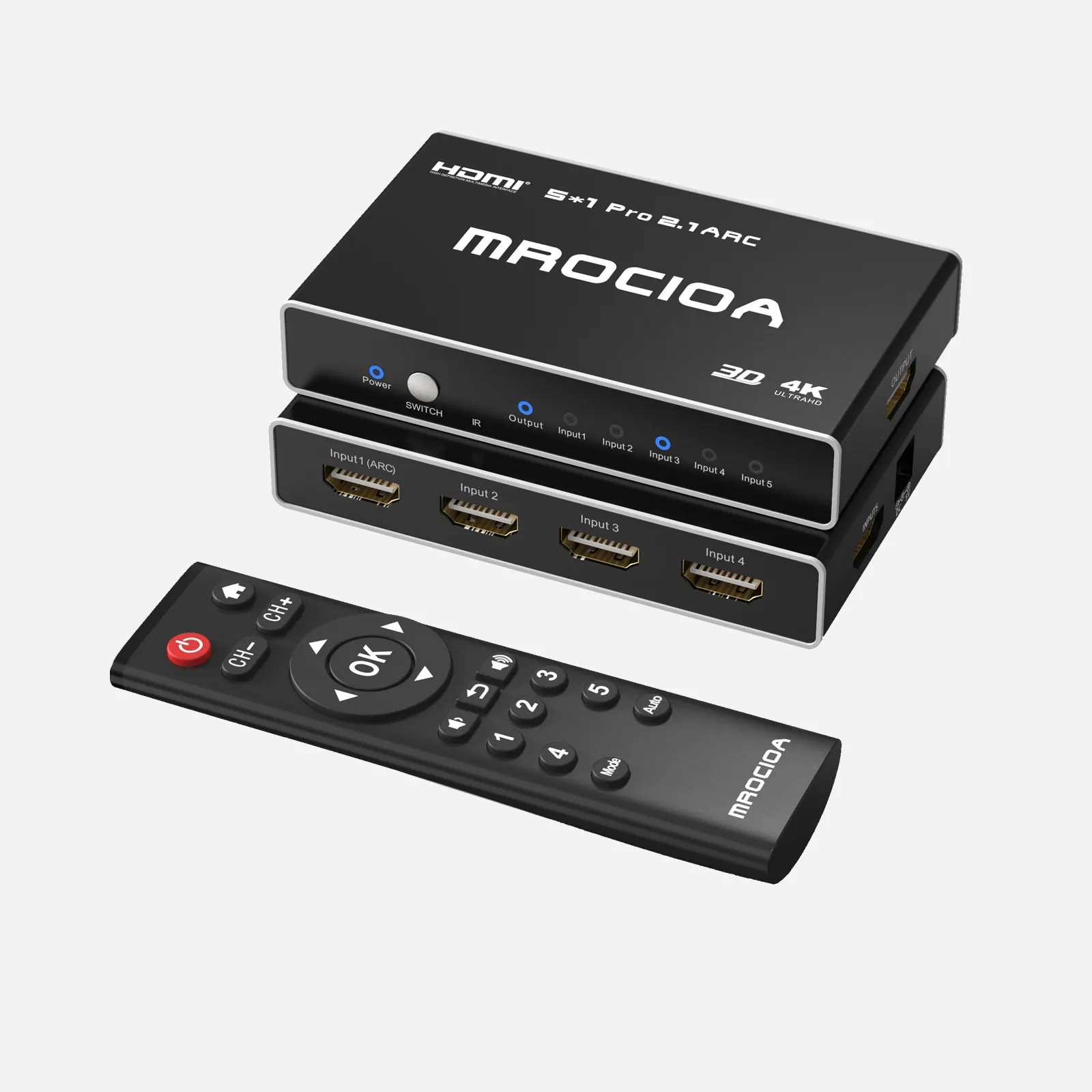
MROCIOA S5 Pro combines five HDMI inputs with a dedicated Port 1 ARC/eARC route for shared Apple TV, console, and home-theater setups.
View MROCIOA S5 ProFrequently asked questions
Can PS5 audio play through HomePod?
Yes. A compatible TV can return PS5 audio over ARC/eARC to Apple TV 4K 2nd generation or later, which then plays it through HomePod.
Can Xbox Series X audio play through HomePod?
Yes. The same eARC return path can carry Xbox audio, subject to the TV, switch, Apple TV, HomePod, cable, and audio-format settings.
Does Apple TV have to stay on Port 1?
On the MROCIOA S5 Pro topology described here, yes. Port 1 is the dedicated ARC/eARC return path.
Do I need two HomePods?
No. One HomePod or HomePod mini can work. A matched stereo pair improves separation; two full-size HomePods provide the strongest Apple home-theater experience.
Will ARC work, or do I need eARC?
Apple supports both. eARC is preferred for higher-bandwidth audio, while ARC may limit available formats.
Will this work with any HDMI switch?
No. This setup depends on a dedicated ARC/eARC return route to the Apple TV input, such as Port 1 on the specified MROCIOA eARC model.
Can HomePod replace my soundbar?
It can replace a basic soundbar in an Apple-centered room when you value clean placement, music playback and Apple TV integration. Keep a soundbar or AVR if you need a dedicated center channel, subwoofer, rear speakers, DTS, extra audio inputs or the lowest possible gaming latency.