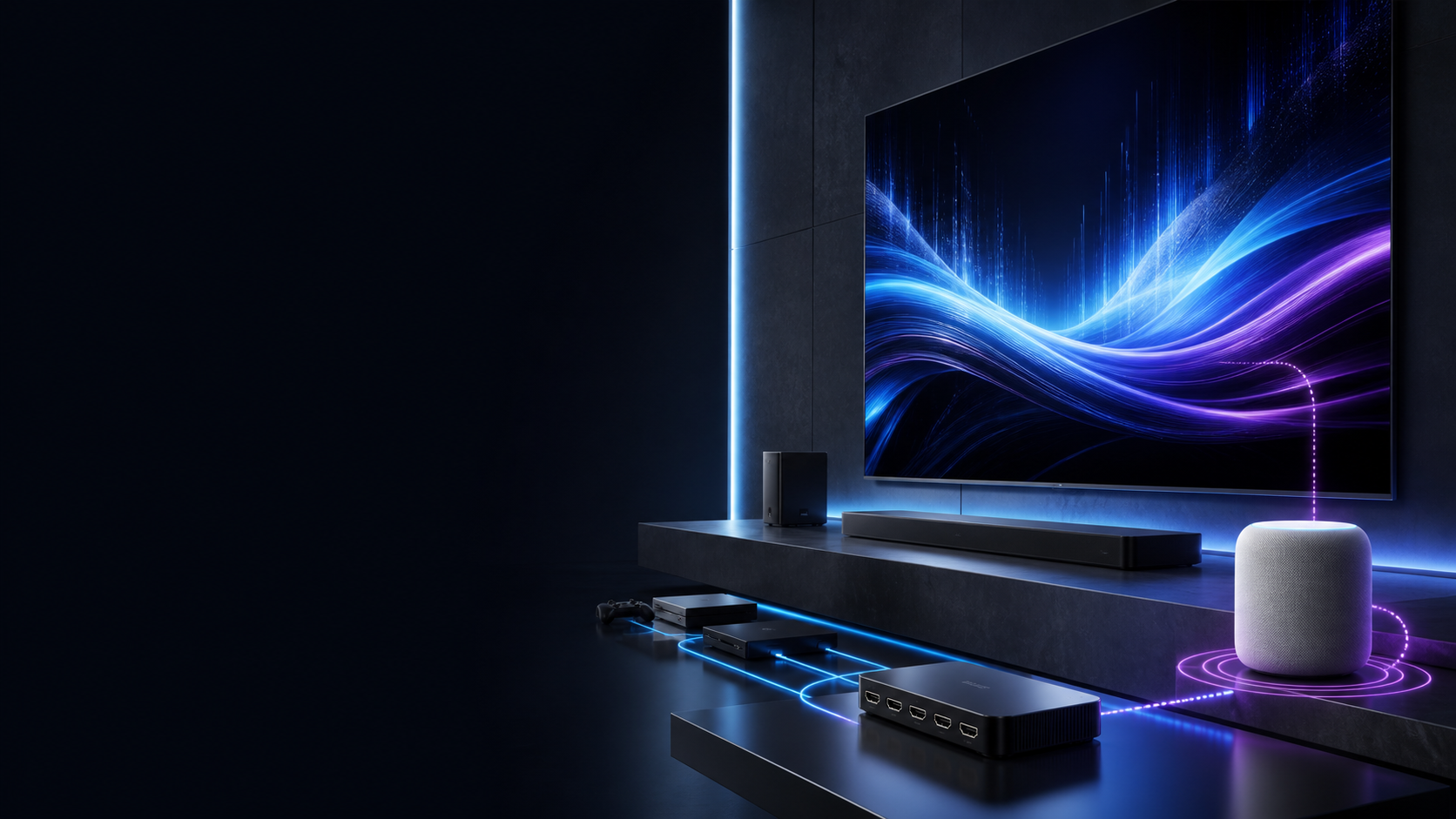

Soundbar Has No Sound After TV Startup? Reset the eARC Handshake

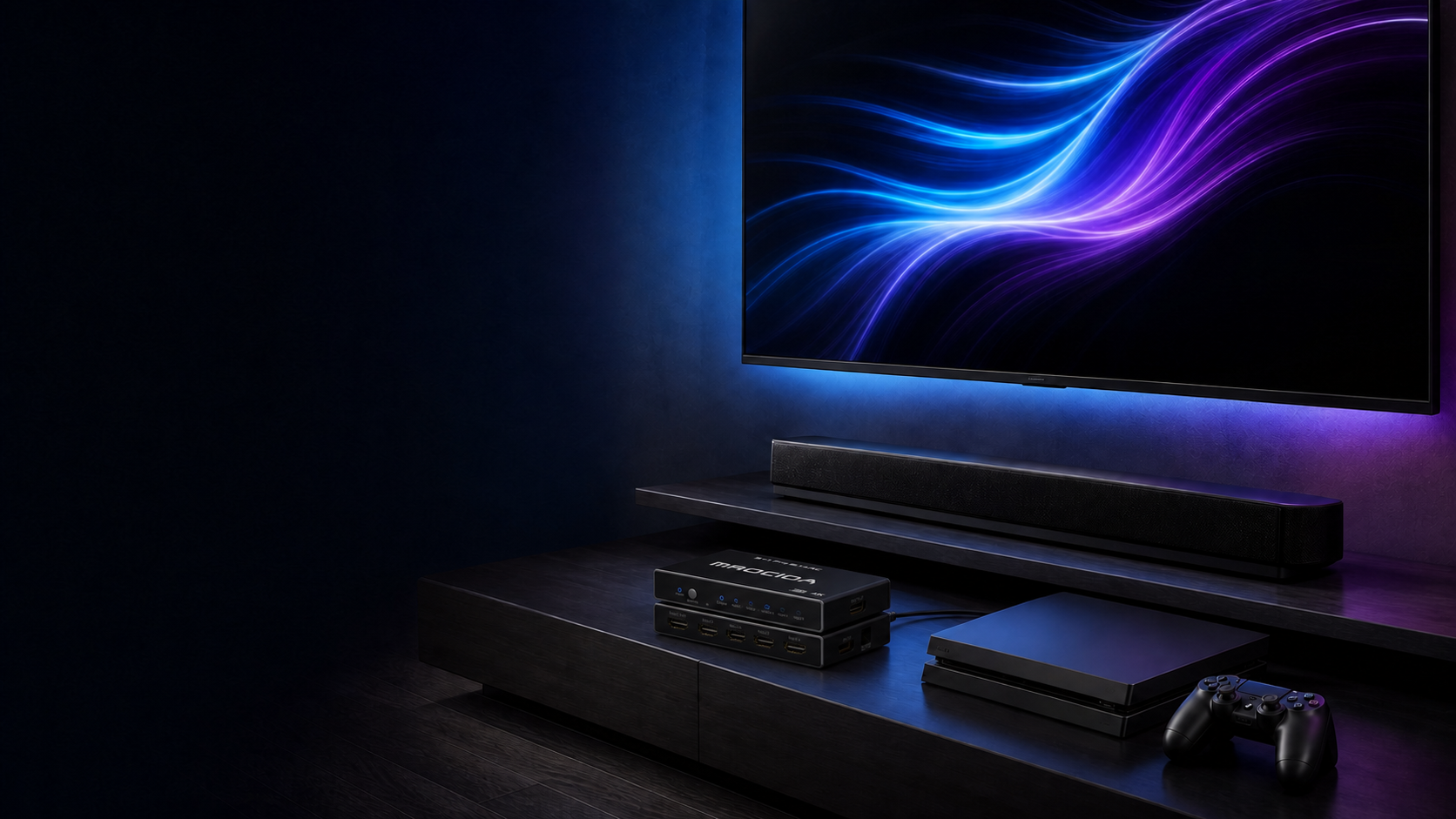
A PS5 wakes the television, the MROCIOA switch selects the game input, and the Sony HT-G700 powers on—but the picture arrives with no sound. In our Sony TV setup, this intermittent failure appears most often after the room has been powered down for an extended period.
Keep the system on, switch MROCIOA to Port 1, wait about 30 seconds, and return to the PS5 or other source. Port 1 is the soundbar path in this topology. In our test setup, the pause gives the Sony TV and HT-G700 time to re-establish their ARC/eARC interaction, and audio returns when the original source is selected again.
Scope: this is a recovery step for a system that has worked before. If a new installation has never produced audio, verify the wiring, ARC/eARC settings, HDMI-CEC/BRAVIA Sync, firmware, audio format, and cables first.
The Sony TV + HT-G700 port map we tested
The switch output uses the television’s ARC/eARC-labeled HDMI input.
Port 1 is reserved for the return-audio endpoint in this MROCIOA setup.
The console can wake the TV and soundbar through HDMI-CEC.
Xbox, Apple TV, Nintendo Switch, PC, Blu-ray, or another player.
Watch the no-sound recovery
This reuses the same five-device desktop and mobile signal-path interaction as our previous MROCIOA eARC guide. Let the animation play, or select Port 1 and a source yourself.
See the Port 1 recovery path
Purple is the selected HDMI source. Cyan is working eARC audio. Red is the silent return path.
TO PORT 1
TO TV
The PS5 on Port 2 reaches the Sony TV, but the TV-to-HT-G700 return-audio interaction has not recovered after the long power-off period.
The animation holds the Port 1 instruction first, then accelerates. In the real setup, leave MROCIOA on Port 1 for approximately 30 seconds before returning to the original source.
Why picture can return before sound
HDMI video, device control, and return audio are connected, but they are not the same negotiation. A PS5 can wake the television through HDMI-CEC and deliver a valid picture while the TV-to-soundbar ARC/eARC return path is still incomplete. The HT-G700 lighting up only confirms that it received a power command; it does not prove that the television has completed the return-audio session.
In our setup, selecting Port 1 temporarily removes the game source from the foreground and gives the Sony TV and HT-G700 a simpler opportunity to recognize each other. After approximately 30 seconds, returning to Port 2 restores the normal two-way route: PS5 video travels to the TV, while TV audio returns through the MROCIOA switch to the soundbar on Port 1.
The four-step recovery
Leave every device powered on
Do not unplug the TV or soundbar yet. Keep the silent source picture visible so you can test the recovery immediately.
Select MROCIOA Port 1
Port 1 is the HT-G700 return-audio endpoint in this topology. Use the switch button, remote, or app.
Wait about 30 seconds
Avoid rapidly changing inputs. In our Sony setup, this pause gives the TV and soundbar time to re-establish their ARC/eARC interaction.
Return to the original source
Select PS5 on Port 2—or whichever source was active—and play a known audio sample. The soundbar should now receive the TV’s returned audio.
If Port 1 does not restore the sound
The HT-G700 should appear in the BRAVIA Sync device list, and Control for HDMI should be enabled.
Confirm the TV is not sending sound to its internal speakers and the soundbar input is set to TV.
Verify the TV eARC/ARC setting and the correct ARC/eARC-labeled HDMI port.
If one source remains silent, test PCM to rule out an audio format the current chain is not decoding.
Reseat both ends and test a short high-speed cable without adapters or extenders.
If needed, disconnect power and HDMI for two minutes, reconnect, then start the TV before the soundbar.
Sony’s HT-G700 firmware history specifically lists fixes for no sound when connecting to eARC, sound being cut off over eARC, and sound not being output when connected to a TV. Update the soundbar and television before treating the problem as a hardware failure.
When this quick fix is the wrong tool
The Port 1 recovery is intended for an intermittent cold-start failure in a previously working system. It is not a substitute for initial setup. If the soundbar has never worked, first confirm that MROCIOA HDMI OUT uses the television’s ARC/eARC port, HT-G700 is on Port 1, the TV output is Audio System, BRAVIA Sync/Control for HDMI is enabled, and the complete chain supports the selected audio format.
If the soundbar also fails when connected directly to the television, remove the switch from the diagnosis and follow Sony’s TV-and-soundbar troubleshooting. If direct TV audio works but the problem returns only after the MROCIOA topology is restored, record the TV model, soundbar firmware, source port, audio format, and cable details before contacting support.
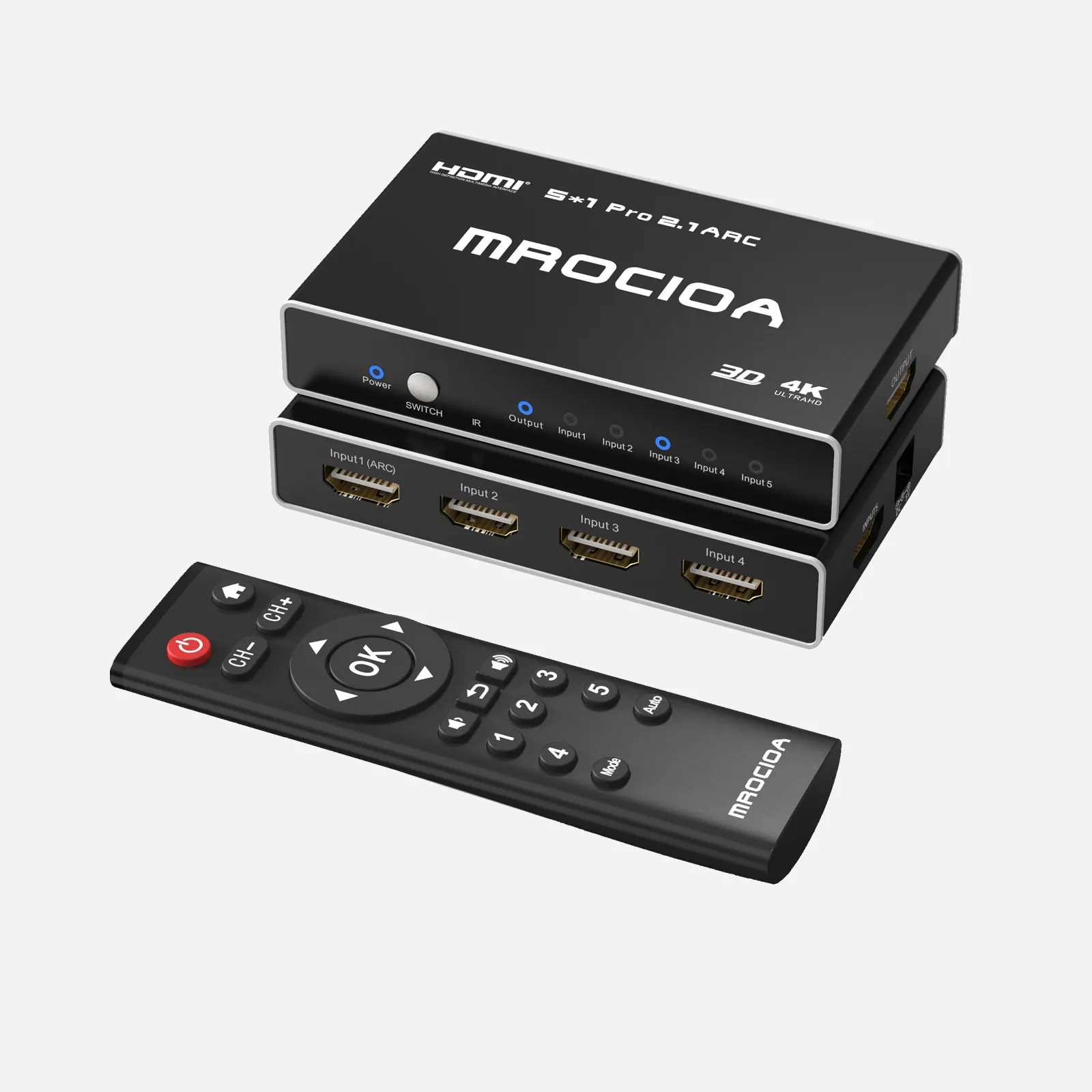
Keep the soundbar on a dedicated Port 1 path
MROCIOA S5 Pro manages up to five HDMI sources while preserving a dedicated ARC/eARC route for a compatible soundbar setup.
View MROCIOA S5 ProFrequently asked questions
Why does the soundbar turn on but stay silent?
HDMI-CEC can power the soundbar while the separate ARC/eARC return-audio negotiation is incomplete. Power state alone does not confirm that the TV and soundbar have established an active audio return path.
Why switch the MROCIOA unit to Port 1?
In this supported topology, Port 1 is the soundbar’s dedicated ARC/eARC endpoint. Selecting it temporarily gives the display and soundbar a simple path to renegotiate before another source is selected.
Is the 30-second wait required for every TV and soundbar?
No. Approximately 30 seconds is the tested timing for the described Sony TV and HT-G700 setup. Other combinations may recover sooner, later, or require a complete power reset.
Will this fix a new installation that has never produced sound?
Not necessarily. Check the complete port map, ARC/eARC labels, HDMI-CEC or BRAVIA Sync, TV speaker output, soundbar input, firmware, audio format, and HDMI cables.
Should I factory-reset the HT-G700 first?
No. Start with the reversible Port 1 recovery, then check settings, firmware, cables, and Sony’s normal power-reset procedure. A factory reset is a later step because it removes saved settings.
Can I use the same recovery for Xbox, Apple TV, or another source?
Yes, if the no-sound event occurs in the same previously working MROCIOA Port 1 ARC/eARC topology. Return to the original source port after the Port 1 wait.